Google docs has a nice set of styles such as "Normal text" and "Heading 1".
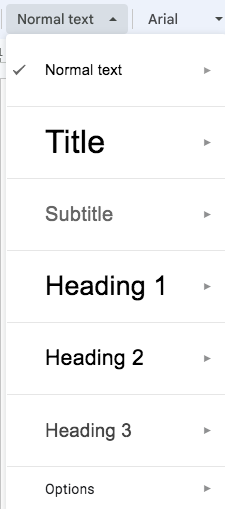
How do I add my own? I want to add a style called "code" for text that is programming code.
Google docs has a nice set of styles such as "Normal text" and "Heading 1".
How do I add my own? I want to add a style called "code" for text that is programming code.


Right now it's not possible to add more styles or rename the existed ones, but you can modify them to match your needs.
For example you could style your code as you wish and then by selecting one of the headers and choosing the Update Heading # to match selection, that particular style could become your new "Code" style.
Then select something else and apply that heading and you're done.


As Lipis poins out, you still cannot create your own styles. So, you are left to repurpose an existing one. The downside to using Heading is this will result in "code" in my Table of Contents (TOC). :/ I found that using Title and Subtitle styles for code prevents those styles from showing in TOC.


A lot of the solutions don't work inline. This is a cleaned-up solution offered by @AlekseyBykov using Google App Scripts to add a custom menu action:
Extensions > Apps Script// Add new menu item
function onOpen() {
DocumentApp.getUi()
.createMenu('Styles')
.addItem('Format Code', 'formatCode')
.addToUi();
}
// Define code styling
var style = {};
style[DocumentApp.Attribute.FONT_FAMILY] = DocumentApp.FontFamily.CONSOLAS;
style[DocumentApp.Attribute.FONT_SIZE] = 10;
style[DocumentApp.Attribute.BACKGROUND_COLOR] = "#DDDDDD";
style[DocumentApp.Attribute.FOREGROUND_COLOR] = "#333333";
style[DocumentApp.Attribute.BOLD] = false;
// Apply code formatting
function formatCode() {
var selection = DocumentApp.getActiveDocument().getSelection();
if (selection) {
var elements = selection.getRangeElements();
for (var i = 0; i < elements.length; i++) {
var element = elements[i];
// Only modify elements that can be edited as text; skip images and other non-text elements.
if (element.getElement().editAsText) {
var text = element.getElement().editAsText();
// Style the selected part of the element, or the full element if it's completely selected.
if (element.isPartial()) {
text.setAttributes(element.getStartOffset(), element.getEndOffsetInclusive(), style);
} else {
text.setAttributes(style);
}
}
}
}
}
Styles > Format Code

The workaround I've come to rely on is the Copy/Paste Format feature shortcut. As the format "clipboard" is separate from the text clipboard, it is preserved for as long as you have the document open.
To use:
option + command + c or Ctrl + Alt + c or use the Paint Format iconoption + command + v or Ctrl + Alt + vIf you only need one extra style, I find this very little extra work, with no drawbacks, compared to other options. The only work is to initially copy the style to the buffer when opening a new document.
The other technique I use (as I commented on the question) is to invert the problem: always type in "code" format at the end of the document then reset any non-code to normal using `command + option + 0".
When I'm writing technical documents, if 50% of the text is code, then this is also no extra work.
The only tip here is to format the very last linefeed character in the document as "code", else it keeps revering to normal. This is done by arrowing down to the end, then hold shift and right-arrow - it will select one more sneaky character. Then format that as code. Now the end of the document will always be in code by default.

The gratis Google Docs extension Paragraph Styles+ allows to create custom paragraph styles (plus decimal system outline numbering for headings and a table of contents with page numbering).
I just tested it, and here's my first impression:
Source: Acknowledging the comment by Chris Moschini above, who mentioned it first.
Until recently, it was possible to edit the CSS (stylesheet) and HTML source of a document. It took some work, but if you knew HTML and CSS you could add a CSS class to your doc, and then edit the HTML to use it, e.g. in the HTML
<span class='booktitle'>Infinite Jest</span>
and in the CSS
.booktitle { font-style:italic; }
Google has more or less phased out this capability with their new format, forcing old docs to the new format. But, I've heard there are ways to keep docs in the old format, so there may be some hope.


